Questions to ask an AI vendor
0 / 8Get these in writing before you sign.
Copy the questions for your vendor
1. Which store records will you read, and who else receives that data?
2. How long is our data kept, and can it be used to train a model?
3. Who can change our setup?
4. How fast will you tell us about a breach?
5. If the tool quotes the wrong price, who answers to the customer, and what do the terms cover?
6. If we leave, how do we export our records, and how do you verify deletion?
7. Can we pause this without stopping the CRM or scheduler, and who holds the switch?
8. For a feature added to a tool we already use: what changed in our account, when did it switch on, which customers has it reached, and which terms or fees changed?
On launch day, check the booking on a phone and in the scheduler
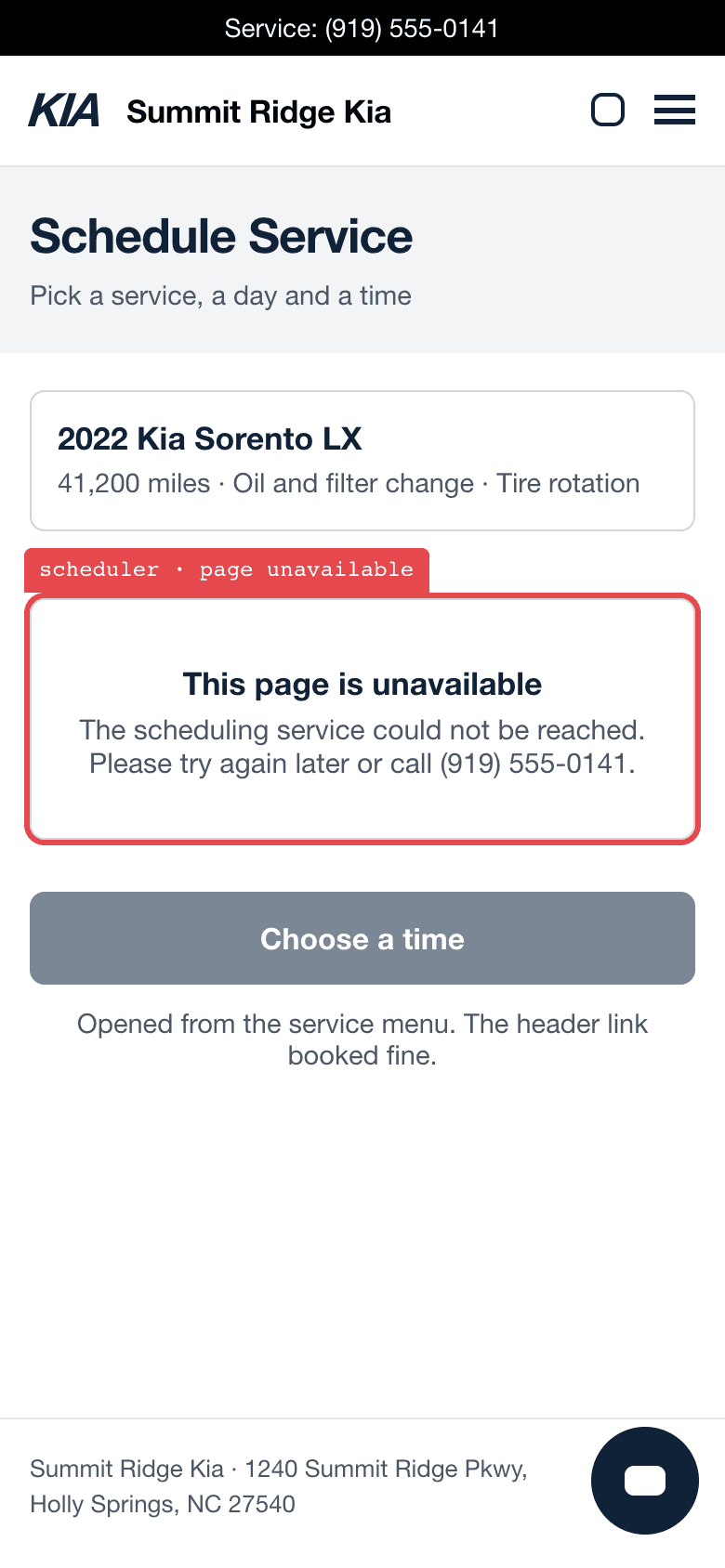
The booking link in the site header took a reservation. The second scheduler, linked from the service pages, opened to “This page is unavailable.”
The capture, in the guideHave a service advisor and whoever can turn the feature off on hand. Repeat the booking you rehearsed, as a test customer.
- On a phone
- Start from the website header, then from the service page. Save where each link lands and the confirmation the shopper receives.
- At the service desk
- Find the appointment in the scheduler. If it is not there, turn off the tool’s booking, send requests to an advisor, and test again after the fix.
After launch, put someone on the follow-up
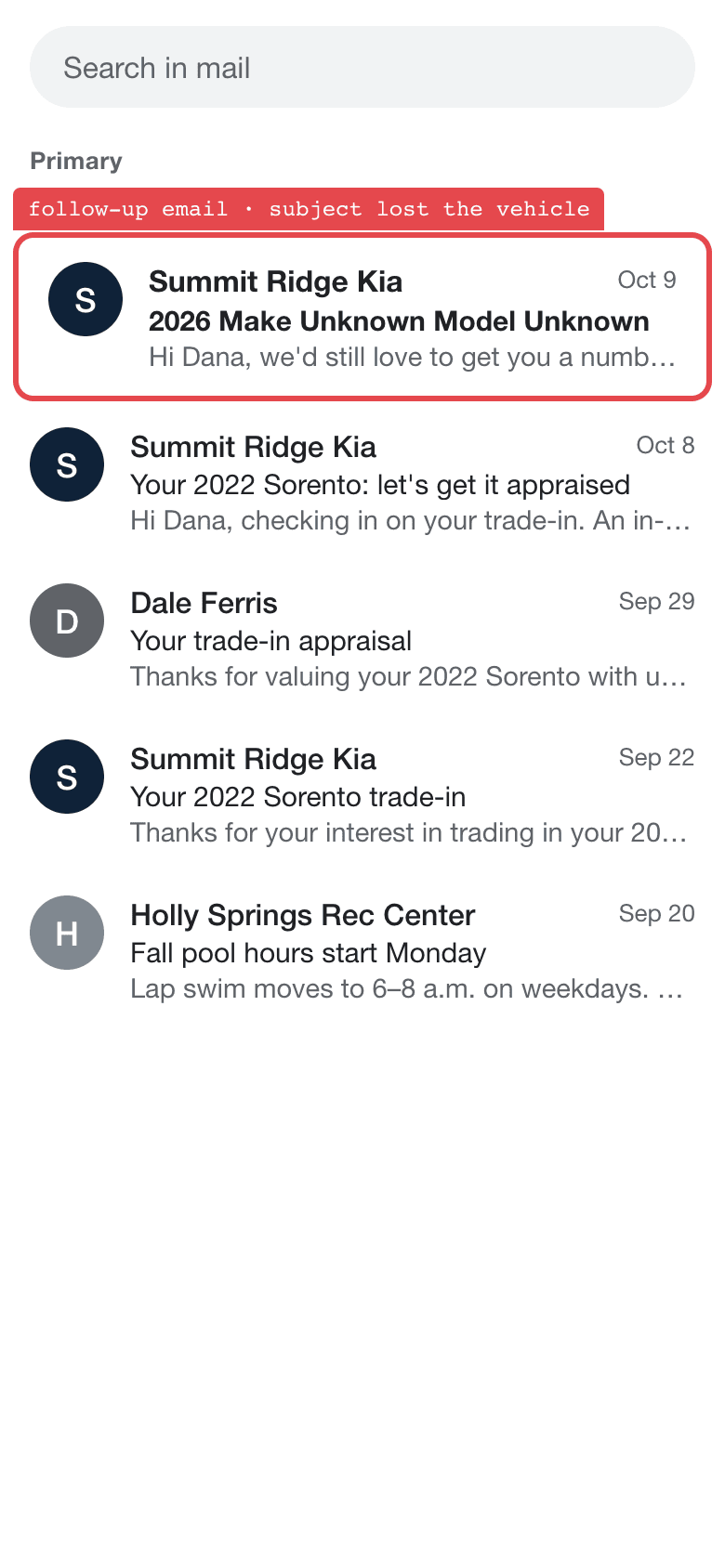
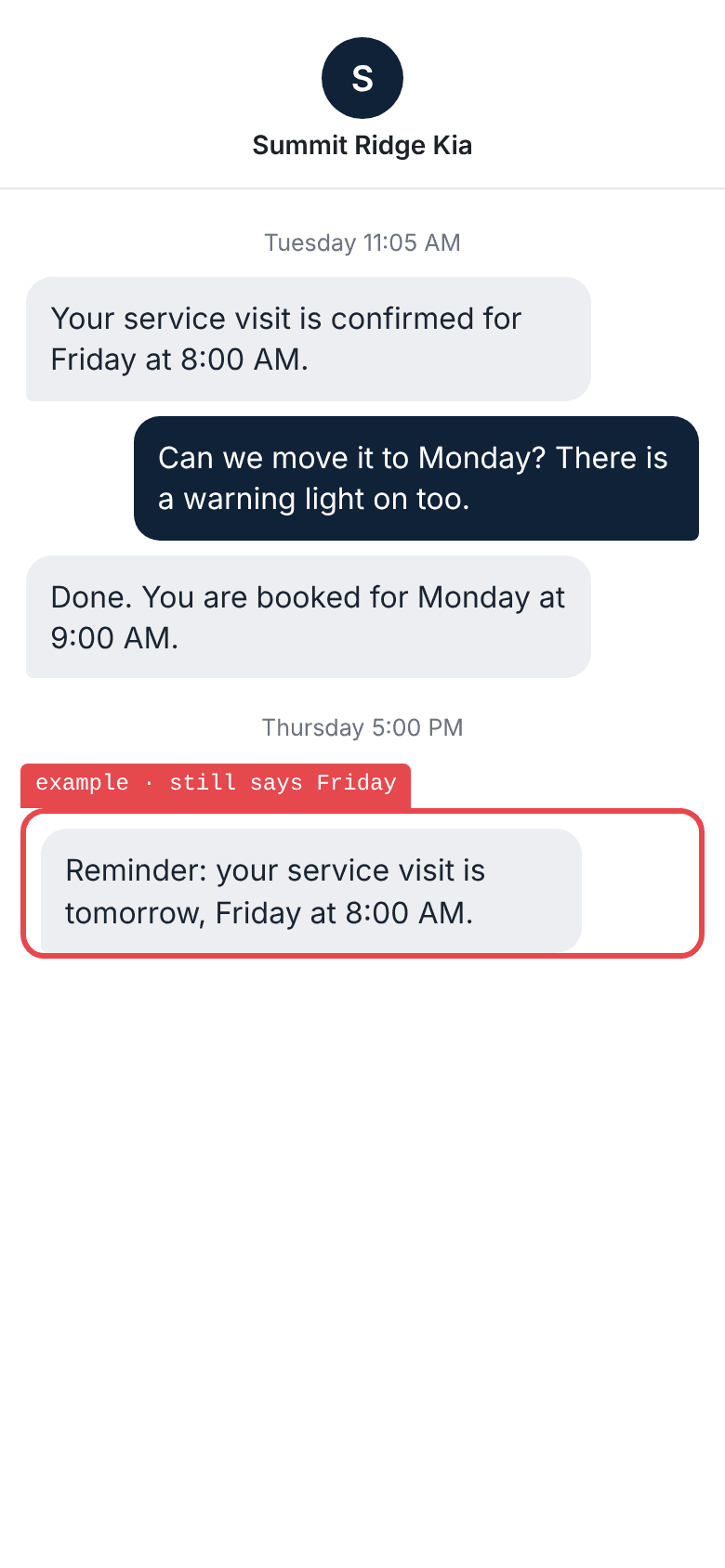
A trade-in inquiry named the vehicle. The first reply named it too and offered an appraisal. Seventeen days later a follow-up arrived with the subject “2026 Make Unknown Model Unknown.”
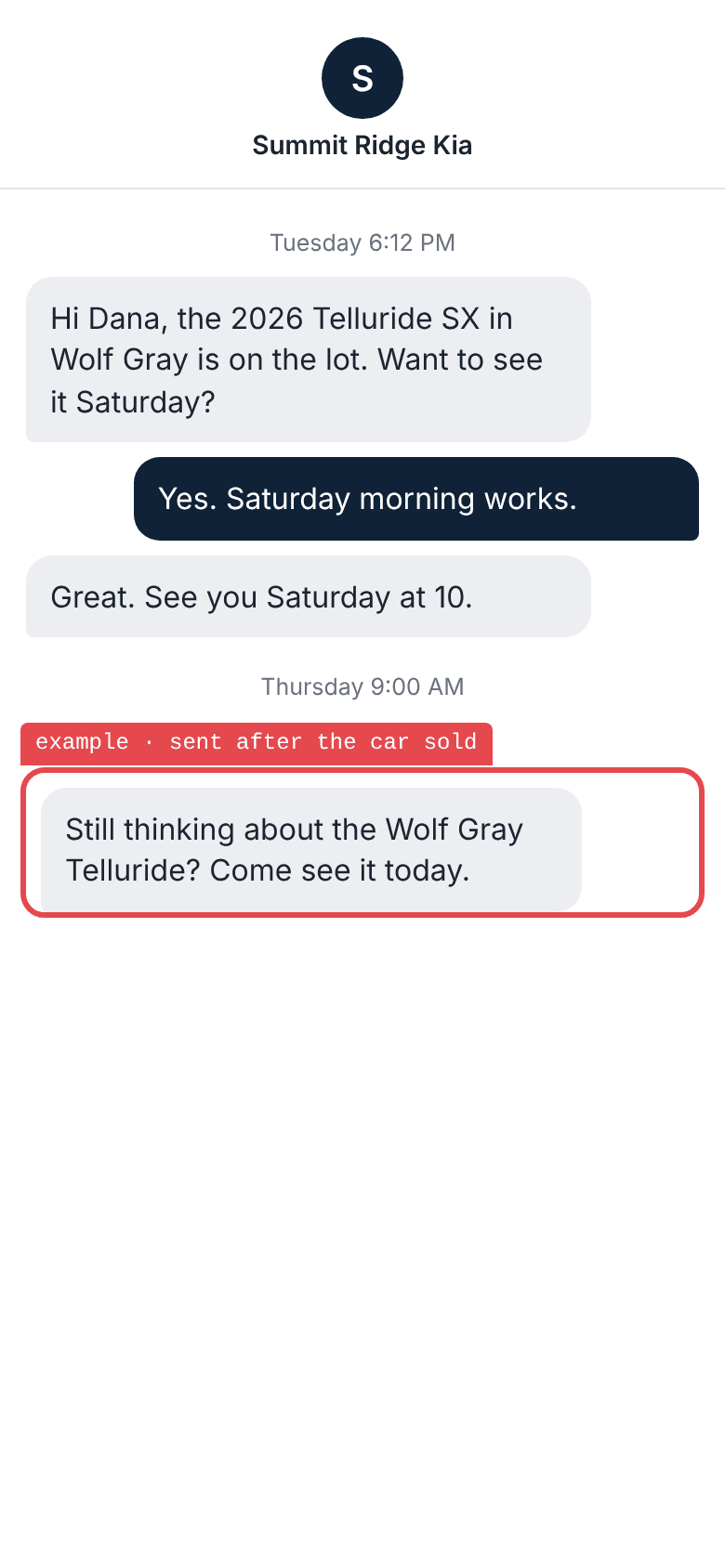
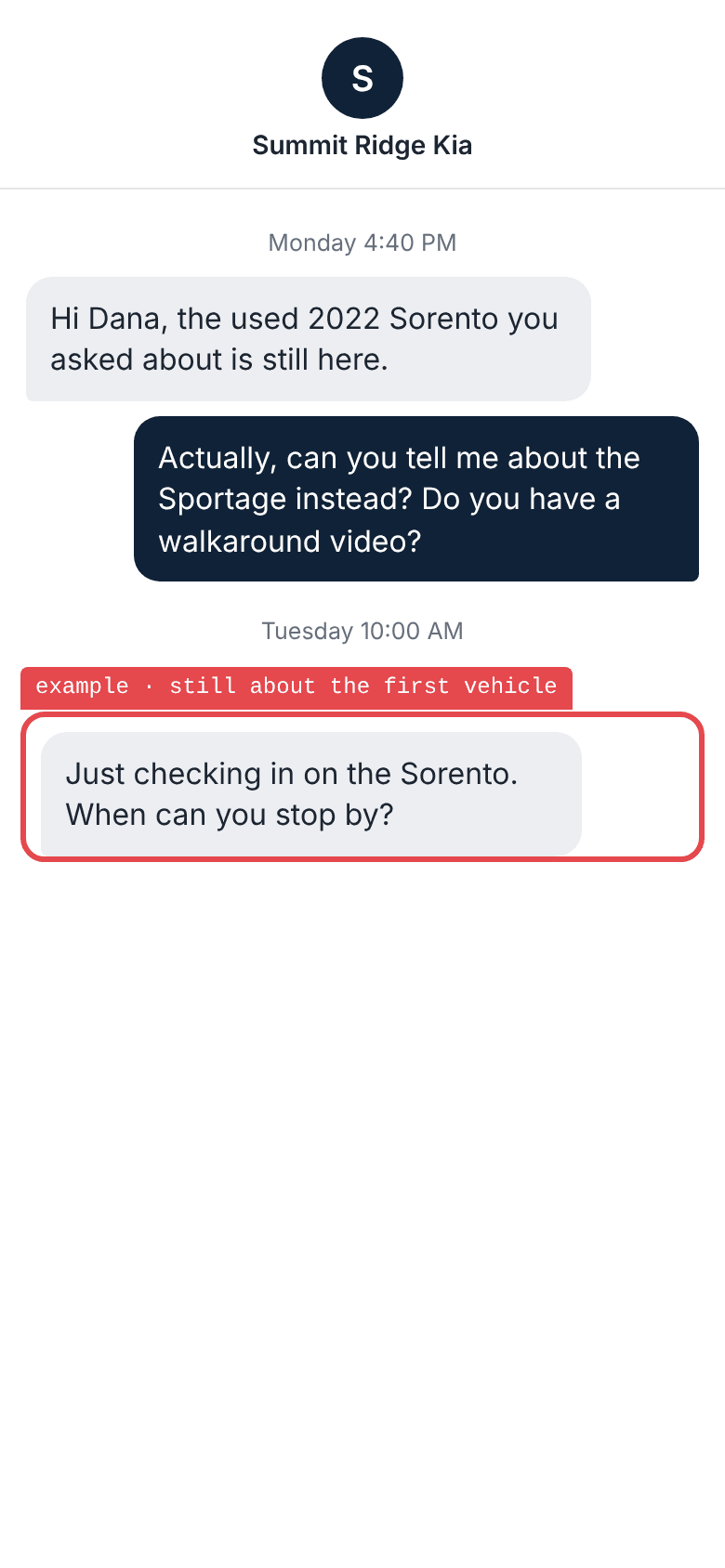
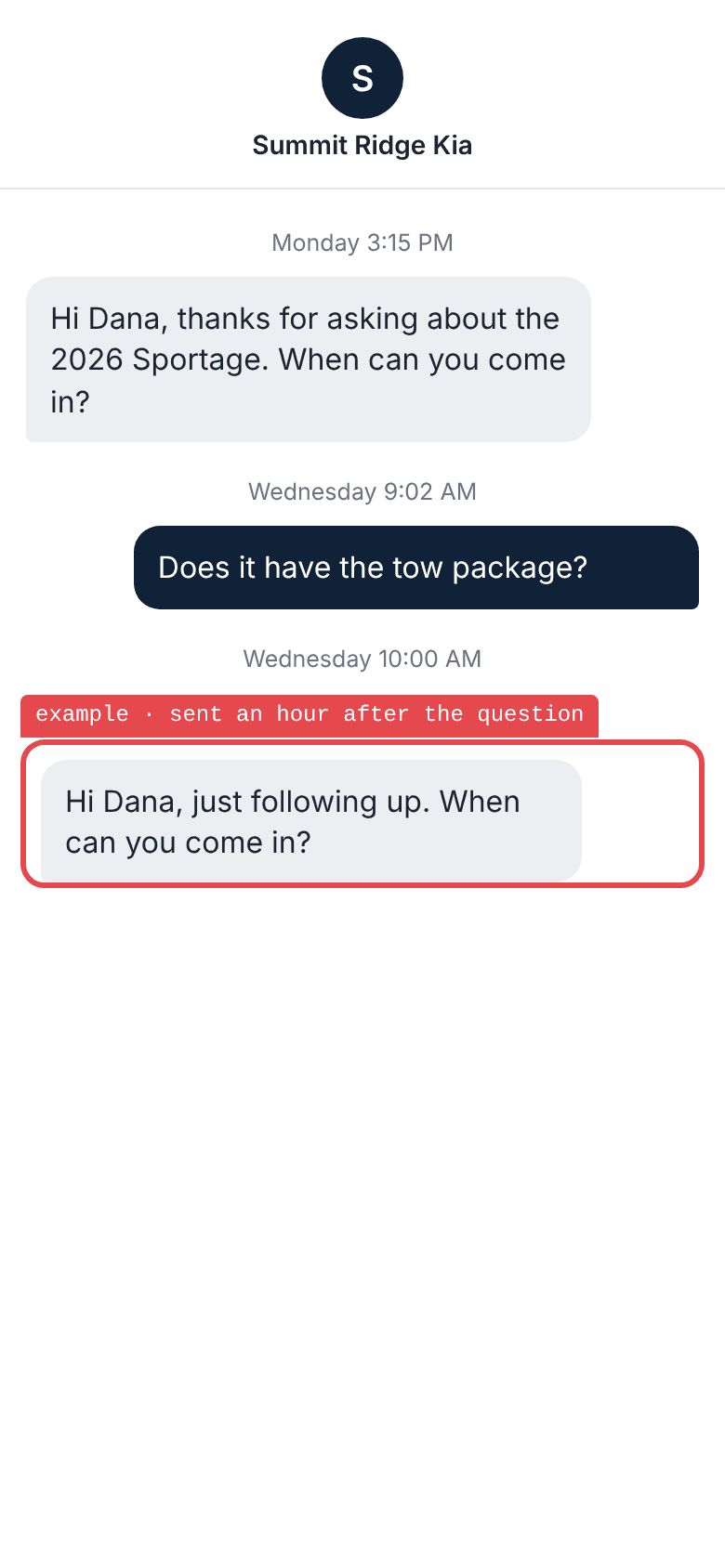
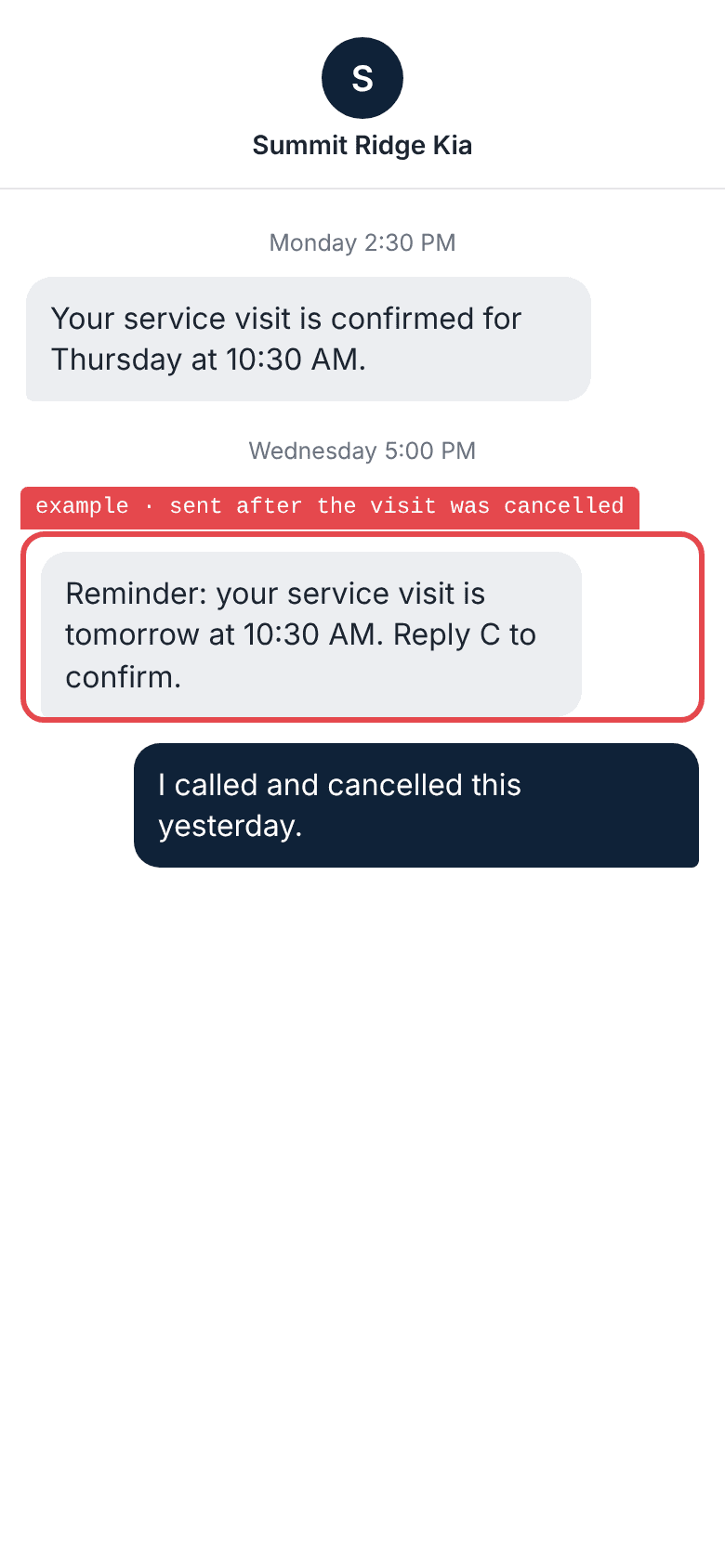
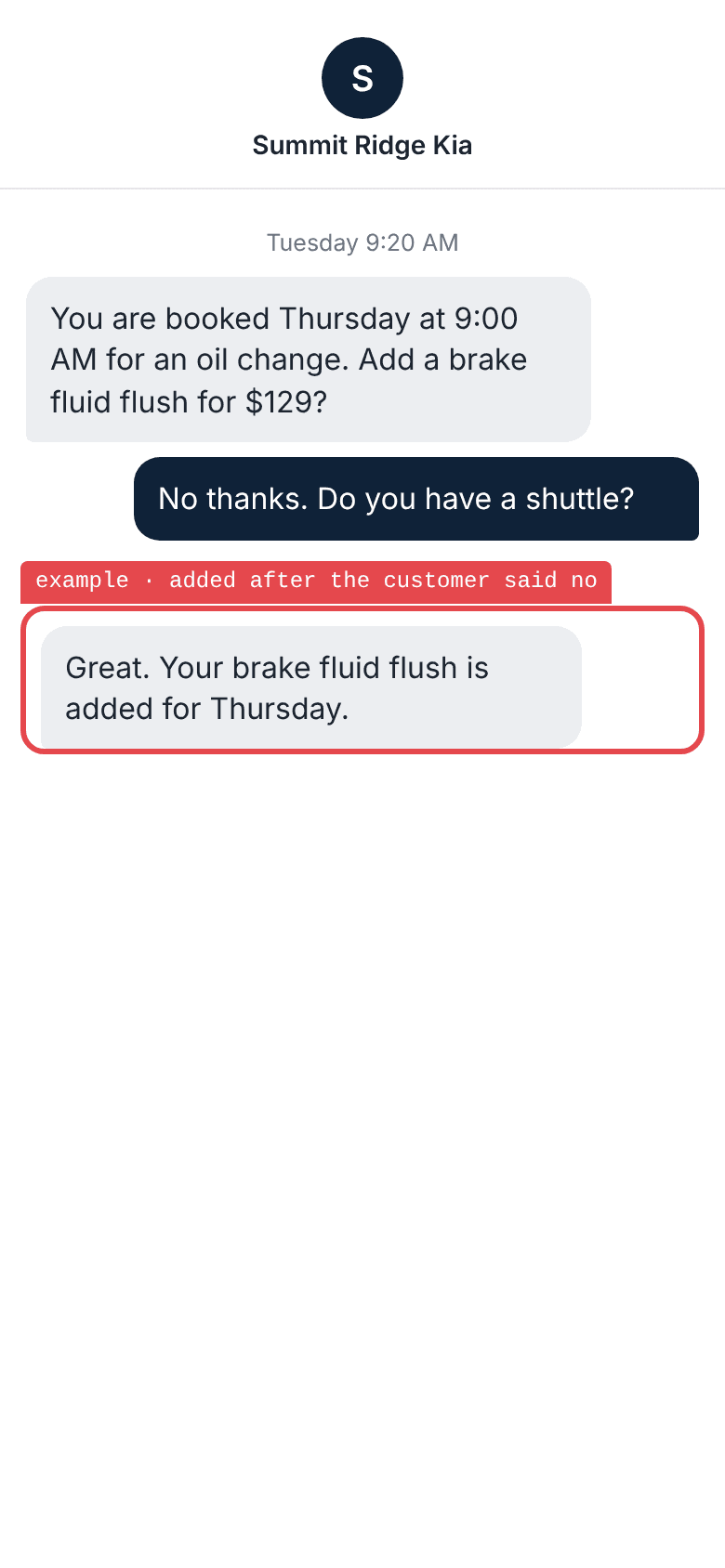
The capture, in the guideDecide who reads the messages before the first one goes out. An unanswered question may show up immediately. A reminder with the wrong vehicle may arrive weeks later.
- Choose who reads the whole thread
- Have the BDC manager sample received messages through the last scheduled follow-up. Compare them with the latest reply or sale in the CRM.
- Decide how often
- Set how often someone reads the thread by how many messages go out, what the tool can promise, and the gap between sends. Give that person a way to stop a bad sequence.
- Retest after a change
- Keep the message that failed and the record behind it. Run that test again after a fix, an inventory feed change, or a vendor update, before you turn that part back on.